Friday, 13 September 2013

So, Farewell Then, Port 1433

The default port for SQL Server is 1433.  So what port will a hacker breaking in to your system try first?  Got it in one. 

Change the port, goes the theory, and you make life more difficult for a hacker to get at your systems.  It might not prevent a determined attacker, who just starts with Port 1 and goes on to 9999 or whatever the theoretical maximum is, but it will put off the casual browser.  Discussion here. 

It isn't difficult to do, although if you have lots of servers it can be a bit boring.  Here's a quick Summary:
  • Log onto server and run SQL Server Configuration manager to set new port; restart services. 
  • Turn on firewall and allow access to that new port.
  • In SSMS registered servers, specify Servername,Port e.g. SQL2012Dev,4321

Here's a step by step procedure with a little bit more detail. 

1)   First of all check which port is currently in use:
exec master..xp_readerrorlog 0, 1, N'Server is listening on' 
GO
The answer will probably be 1433, but just check that your predecessor hasn't done this exercise for you already! 


2)   Log on to the server using Remote Desktop Connection


3)   Run SQL Server Connection Manager.  There are a couple of places where it specifies the port number.  First select SQL Native Client 11.0 Configuration / Client protocols / RCP/IP
– and set the default port to your chosen value:


Next one is SQL Server Network Configuration / Protocols / tcp/ip / ip addresses.  There are six ports - set them all to your chosen value.


Your changes will not work until you stop and restart the SQL Server Services:


4)   The next step is to modify the Windows Firewall so that it allows your chosen port to get through the firewall. On the Administrative Tools menu, select Server Manager, and then Configuration and Windows Firewall. The Firewall should be on, but if it isn't you had better turn it on.

This is what it looks like if the Firewall is OFF:


Right click on Windows Firewall on the left of the screen, and select Properties from the pull down menu that appears.  If the Firewall State is Off, set it to On (recommended) for each of the three profile tabs. 


This is what it looks like when the Firewall is ON:
 

5)   Select the Inbound Rules from the menu on the left hand side.  SQL Server is probably close to the top, but you may need to sort the columns. 


In the Properties, select the Protocols and Ports tab, and specify the port of your choice. 


That was the Inbound Rules - now repeat that for the Outbound Rules. 


6)   Now go back to SQL Server Management Studio, and edit the Registered Server information.  It doesn't need much, just enter a comma after the server name and then the new port number
e.g. SQL2012Dev,4321


7)   And then just to be sure, log on to that server and go back to the code we started with:


exec master..xp_readerrorlog 0, 1, N'Server is listening on'
 
GO
 
 
The answer should be the new port number. 

Saturday, 3 August 2013

Check your backups - or else!

You make backups.

You restore backups.

Not all of them, necessarily - but every now and then, restore a backup just to check that it's OK.  Find a location on a test server - maybe even on your own laptop, if it has enough grunt.  Restore it.  Check it - maybe run:

dbcc checkdb(vanilla) with no_infomsgs

It should think for a while and then say Command(s) completed successfully.

If it restores OK and DBCC finds no issues, then you can be reassured that things are probably OK with the backups for that database.  Drop it from the laptop - you don't need it anymore.  

Why "with no_infomsgs"?  If you omit this bit, DBCC Checkdb will come back with page after page of guff - this is OK, that's OK - this sort of thing:

DBCC results for 'Production.BillOfMaterials'.
There are 2679 rows in 20 pages for object "Production.BillOfMaterials".
DBCC results for 'sys.ifts_comp_fragment_610101214_4'.
There are 351 rows in 2 pages for object "sys.ifts_comp_fragment_610101214_4".
On and on it goes

And you have to read through it all  looking for anything which isn't OK.  Sling the stuff which is there "just for information" and life is much simpler.  

What if it is corrupt?
  1. Don't panic
  2. Don't detach the database
  3. Don't restart SQL
  4. Don't just run repair.
  5. Run an integrity check
  6. Afterwards, do a root-cause analysis
This is from Gail Shaw - read more of her words of wisdom here.  In fact save that link in your favourites, memorise it, get it tattooed upon your left buttock - whatever it takes.  You will need it on the day you find a problem.  I once found four corrupt databases.  The previous guy had been running this:

dbcc checkdb(Vanilla) with physical_only

According to Microsoft, this...
"Limits the checking to the integrity of the physical structure of the page and record headers and the allocation consistency of the database. This check is designed to provide a small overhead check of the physical consistency of the database, but it can also detect torn pages, checksum failures, and common hardware failures that can compromise a user's data."
It's quicker too.  But as I say, it missed four corrupt databases.  Gail's advice helped me recover all of them without any data loss.  So - thanks Gail.

Now most of the time you take backups to disk, but you can't keep everything on disk - in fact you probably don't keep more than three days' backup on disk.  More likely you use something like Symantec Backupexec to copy your backups from Disk to Tape overnight.  

You can keep every single backup ever made on tape if you want to, although it will need a lot of tapes and it's probably overkill.  A good compromise is to do something like this:
  • Keep every daily backup for a week
  • Keep your weekly backups for a month (a four week lunar month works for me).
  • Keep each monthly backup for a year.  
Ask yourself - will I ever need a backup that's older than a year?  Probably not, but it's up to you - you know your business, and maybe your business has a legal duty to keep stuff for seven years.  You can keep everything for ever if you want, but it will cost a lot of tapes and management.  You will almost certainly want to store them offsite - firms like Iron Mountain will provide this kind of service - they collect and drop off too.  Tell them Jack sent you (you never know).  

But here's the rub - every now and then you want to check that you can retrieve data from those tapes.  Pick a date - maybe the monthly backup for three months ago.  Pick a database.  And request that tape, get it copied to your test area, and restore the backup.  I tried that today.  Guess what?  there was some sort of problem with the tape.  I asked for Friday the 19th July, a couple of weeks ago now.  But what the tape actually contained was data from March.  For some reason (and we are frantically looking for that reason now) the backups were not overwriting the existing data.  

When we find the problem, it will probably be something so trivial it's not true - a missing comma in the command used, perhaps; maybe a worn patch on a $4.99 tape.  And now that we've found it, it won't go wrong again.  But it was found, and it will be fixed, only because I checked.  

So check.  

Wednesday, 3 July 2013

Colour Coding Your Servers

Dozens of servers, all with similar names – and you’re new; it’s a recipe for confusion!  Suppose you accidentally update the Production server instead of the Development server when trying out some new code?  That would probably be a Bad Thing, and lead to your colleagues mocking you, not to mention the company maybe going bust.  So, being a DBA, you get a bit paranoid, and check again.  And again, a bit later. 

This is a handy hint for Mr/Ms Paranoia.  Take a look at the list of Registered Servers and pick one of the development boxes.  The Properties look something like this:


But there’s another tab - click on the Connection Properties.  


Tick the box to the left of Use Custom Color, and then click Select.  


This gives you 48 basic colours, plus the chance to define your own custom colours, if you are into interior design.  Don’t get carried away – you only need Red (for Production) and Green (for Development).  Okay, maybe Amber for Test/UAT.  Click on Green for Development, and then OK.  

This takes you back to the Server Registration dialog box.  Just click on SAVE


And now, when you open your development server – ta da!  It’s clearly marked with a nice safe-looking green stripe


Thursday, 7 March 2013

Getting Data out of Active Directory and into SQL


Active Directory is a directory in which you can store information about people, things (computers, printers, etc), applications, domains, services, security access permissions, and more. Here's a good introduction.  But unfortunately it's in its own wacky format, and it isn't easy to get at it.  But if you do want to run SQL queries, here's how.  

First job is to set up a Linked Server to the AD server.  That's reasonably straightforward.  


execute  sp_addlinkedserver
       'ADSI',
       'Active Directory Service Interfaces',
       'ADSDSOObject',
       'adsdatasource'


After that you can wave goodbye to Mr and Mrs Straightforward.  Fortunately others have been here before me, and I'm indebted to this article by Brendan Tompkins who explains how to do it.  Here's Brendan's basic query:


SELECT *
FROM OpenQuery(ADSI, 'SELECT title, displayName, sAMAccountName, givenName, telephoneNumber, facsimileTelephoneNumber, sn
FROM
       ''LDAP://DC=DomCon1,
       DC=domain,
       DC=org''
       where objectClass =''User''')


So you select the fields you want from the Active Directory system, and in fact there are at least 40 fields you might want.  Some of them you won't know you want until you look at the data, so unless things are very organised in your company you may want to read in everything, and then decide which ones matter to you by setting up a view.  LDAP stands for Lightweight Directory Access Protocol – an application protocol for querying and modifying directory services developed at the University of Michigan in the early 1990s. An LDAP directory tree is a hierarchical structure of organizations, domains, trees, groups, and individual units.  I've never heard of it myself, but it is explained in the intro to AD that I linked earlier.

You will probably have at least two domain controllers, in case one fails, and maybe lots more than that.  When you log on, you log on to whichever domain controller happens to be available.  Each one contains a copy of the AD database, and if information on one DC changes (e.g. a user changes their password), it sends a signal to the other domain controllers to begin a pull replication of the data to ensure they are all up to date. This is true for most of the fields you want, but sadly not all.

One weird feature is that you can only read in a thousand records at a time, which might be a challenge if you have 100,000 records in the AD database.  But in that same article, in the comments, there's a chunk of code by Hermann Croucamp to tackle that limit. Herman loops through each record until they have all been read in.  Without that code I would still be reading in chunks of 1000 records and trying to stick them together with sellotape.

So, I created a temporary table and read all the stuff out of Active Directory into my temp table.  Then I merged it into a permanent table - updating if the record exists, inserting a new row if it doesn't.  Alternatively you could just truncate the permanent table every night and load it up fresh - up to you.  

Here's another weird feature.  The lastlogon field is useful because you might want to find the people who never log on to their computer.  Perhaps they have left, or changed their name and been given a new login instead of an update, or maybe they just don't need to use a computer in their work - whatever, if they don't need the login, it can be disabled.  But the lastlogon field, for some wacky reason, is NOT replicated from one domain controller to another.  So if you have two domain controllers - DomCon1 and DomCon2, it may be that someone has never logged on to DomCon1 but they log on to DomCon2 every day.  

Microsoft have actually deprecated Lastlogon, and they recommend you to use LastLogonTimestamp instead.  Now this one IS replicated to all the domain controllers.  That's the good news.  The bad news is that if you have the default settings for replication set, this only happens every two weeks.  And changing it to replicate every day gives you a nice performance hit, I'm told (although I haven't witnessed this myself, it seems plausible - after all, everything useful has a performance hit)..  Which you probably won't want.  

So you have a choice - read in LastLogonTimestamp and be aware that it could be up to two weeks out of date, or read in LastLogon from all the domain controllers and use the latest one.  Which is what I did, since I was merging data anyway; I added a clause to read in the Lastlogon date only if it was more recent than the existing one.

Er, sorry.  When I say LastLogon "date", that isn't entirely accurate.  It isn't a date, it's a timestamp.  It can be turned into a date though, and if you read this article it'll tell you how.  What they have done is start counting from the 1st of January, 1600 (why, for goodness sake?) in steps of 100 nanoseconds.  So all you have to do is calculate the number of seconds per day, the number of 100 nanoseconds per second, and the number of days since 1600.  Not forgetting leap years.

    864000000000 (86400 * 10000000) is the number of 100ns intervals per day,
    which is significant as AD timestamp is the number of 100ns since 1601-01-01 00:00:00.000.
   
   :86400       == number of seconds per day
   :10000000 == number of 100ns per second
   
    109207 (299 * 365 + 72) is:
     the offset number of days from 1601-01-01 (ANSI 0) to 1900-01-01 (SQL 0).

   :299      == number of years between 1601 and 1900
   :365      == standard days per year
   :72       == number of leap years between 1601 and 1900 

Simple, huh?  Fortunately computers are good at this kind of madness, and MWVisa1 (the author of the article) suggests setting up a user defined function to do it.  Follow his advice - do not attempt to do this in your head.  

OK, ready for some more wackiness?  Let's talk about the UAC - the User Account Control.  By the standards of Active Directory, this is simple a number that has been assigned a meaning - a UAC of 512 means Enabled, while 514 means Disabled.  But there are lots of them, so I set up a case statement to give them some meaning:

UserAccountControlDescription =
 CASE
   WHEN userAccountControl = '512' then 'Enabled'
   WHEN userAccountControl = '514' then 'ACCOUNTDISABLE'
   WHEN userAccountControl = '528' then 'Enabled - LOCKOUT
   WHEN userAccountControl = '530' then 'ACCOUNTDISABLE - LOCKOUT' 
   WHEN userAccountControl = '544' then 'Enabled - PASSWD_NOTREQD' 
   WHEN userAccountControl = '546' then 'ACCOUNTDISABLE - PASSWD_NOTREQD'

514 is actually the sum of 512 (normal), and 2 (disabled)
528 is 512 (normal) + 16 (lockout)
etc, etc.

Which leads us to this little chunk of Hermann's code:
(!(UserAccountControl:1.2.840.113556.1.4.803:=2)

The exclamation mark is another way of saying <> or not equal to. If all those bits of UAC code do not equal to 2, then the record is Enabled.  Take out the !, and you are asking for the Disabled records only.  Take out the whole thing - and it doesn't work at all.  So if you want to read in both Enabled and Disabled records, you need to run the code twice.


So - to put it all together I set up a SQL Agent Job, with one step each for my three domain controllers DOMCON1, 2 and 3.  Then three more steps, this time reading in the Disabled records for each DC.  Then another step to Update UAC Descriptions in my ADUserInfo table.  Set that to run overnight.  (Mine takes less than 10 minutes - your mileage may vary.)

Sounds complicated?  Well, it is - but now I have a SQL table updated every night, and which I can query to identify people who haven't logged in for ages, people who need a password change, whatever I want to know.


Thursday, 3 January 2013

When Maintenance Plans Go Wrong

I wrote in an earlier blog about implementing a maintenance plan.  I promised then to look at how to set up warnings for when things go wrong - and they will!

You can look every day at the history of your SQL Server Agent jobs, and see if any have failed.  The problem, of course, is that there are probably lots of servers, and lots of jobs to look at on each one.  The best way is to get SQL Server Database Mail to send a message if something goes wrong.  Assuming that you have managed to get this up and running, here's how:

Set up an Operator

First of all, set up a DBAteam group in Active Directory, listing everyone on the team, if this hasn't been done already.  (Depending on how your firm works, it may be worth adding the Helpdesk team to that list, although this is probably only as a backup, unless of course you have trained them in how to fix DBA things...)

Here’s a stored procedure that will list all the operators who currently exist. This will probably be your own monitoring service, but you will occasionally find that a message will be sent to a vendor in the event of a problem. You may or may not be happy about this.

-- list existing operators
exec msdb.dbo.sp_help_operator


If your DBATeam is already in there, well and good.  But if not, set up a new Operator by expanding SQL Server Agent, selecting Operators, and then right clicking on New Operator.  If you still use pagers, you can get it to contact your pager.


Or you can do this with a script, which is handy if you have lots of servers.

USE [msdb]
GO
EXEC msdb.dbo.sp_add_operator @name=N'DBAteam',
              @enabled=1,
              @pager_days=0,
              @email_address=N'DBAteam@companyname.co.uk'
GO

Maintenance Plan Jobs

If you have followed my guidelines on implementing a maintenance plan, there are probably a number of maintenance plan jobs.  You can get a list with this handy stored procedure:

-- list jobs
select * from msdb..sysjobs

  - something like this:
  • DB Admin User DB Maintenance.Hourly Tasks
  • DB Admin User DB Maintenance.DailyTasks
  • DB Admin User DB Maintenance.WeeklyTasks
  • DB Admin System DB Maintenance.DailyTasks
  • DB Admin System DB Maintenance.WeeklyTasks

Right click on the first one, select Properties, then Notifications.  Tick the email box, select DBAteam from the first pulldown menu, and select "When the job fails" from the second.  (The other options are when it succeeds and when it completes - you probably don't want either of these options).

Tick the Write to the event log box, and select "When the job completes".  I don't mind the log containing lots of messages - that's what logs are for.

The dialog box should now look like this:


This can be done with a script, which is probably better if you have lots of jobs on lots of servers.  For further reading, check here.  

EXEC msdb.dbo.sp_update_job
      @job_name = 'DB Admin User DB Maintenance.Daily Tasks'
     , @owner_login_name = 'SA'
     , @notify_email_operator_name = 'DBAteam'
     , @notify_level_email = 2            -- on failure
     , @notify_level_eventlog = 3         -- on completion 

You want it to email the DBAteam when the job fails, and write to the event log when it completes (success or failure).  You could send an email when it completes too, but that will mean you get lots of emails every day, almost all of them saying "the job succeeded".  I think that it's better to report the exceptions.  If a job succeeds, you don't need to do anything, except bask in the warm glow of a job well done.  If a job fails, that's when you need to spring into action - drop the newspaper, drain the coffee mug, have a gentle scratch and fix the problem.

There's a problem with this approach - if SQL Server Agent fails, or Database Mail fails, you can get a backup failure without a warning email.  If you set it up to send an email on Completion, you might possibly notice the lack of emails.  But chances are that you would not notice one missing email out of fifty, so my advice is to be aware of this possibility and check the job history every now and then.

Is there a better way?  Please let me know.
EDIT: This may help - Heartbeat

Enable Alerting

You've set up Database Mail; you've set up an operator; you've set up a notification in the event of failure.  All you have to do is sit back and wait for the error messages to arrive.  When none come in, you can sit back and bask.

Sadly no.  I once found a job which had been failing for a month without anyone being at all aware of it.   And that's because by default SQL Server doesn't tell you about these problems - you have to enable alerts of this type.  You may think that it would be better if it told you by default - I couldn't possibly comment.

Anyway, right click on SQL Server Agent and select Properties.  Pick Alert System.  Notice that the mail profile is NOT enabled?  <sigh>


OK, tick the box to enable the mail profile; make sure the mail system is set to Database Mail; select a suitable mail profile.

Surely that must be it?  Er, no.

The change you just made won't take effect until the SQL Server Agent service is restarted.  Take a deep breath, and try and unclench your fists!  Put the hammer down.  Put it down now!

Right then.

Right click on SQL Server Agent, and select Stop.  It'll ask you to confirm.  Before you do, you might just make sure that an important job isn't about to kick off...

Right click on SQL Server Agent, and select Start.  And confirm.


Set up a test job

You could now wait for a job to fail.  Assuming that you have done everything right, you should then receive an email to say that it failed, and then you can fix it.  Problem is that you might have missed something.  So rather than screwing up a working job, we'll create a job which will fall over deliberately.

Go to SQL Server Agent, right click on Jobs, and select New Job.

The Name is compulsory - I like to call all my DBA jobs "DB Admin something" but it's up to you.  The Category and the Description are optional, but it's worth taking a few minutes to say what it's about, and initial and date it.  Trust me, in a couple of years time your future self, or your successor, will be glad you did this.


Now Steps - there's only one, and I call it "Deliberate Error" because that's what comes out on the email message.  And a little bit of code to cause a deliberate error - division by zero will do nicely:


--declare variables
declare @i int
declare @j int
declare @k int

--set values
Set @i = 1
set @j = 0

-- force division by zero
set @k = @i / @j


You don't need to schedule this - you'll probably only need to run it once (let's hope so anyway!)
But you do need to set up the notification - back to the top of the page, or just run this script:


EXEC msdb.dbo.sp_update_job
      @job_name = 'DB Admin Test Job Fail'
     , @owner_login_name = 'SA'
     , @notify_email_operator_name = 'DBAteam'
     , @notify_level_email = 2            -- on failure
     , @notify_level_eventlog = 3         -- on completion 


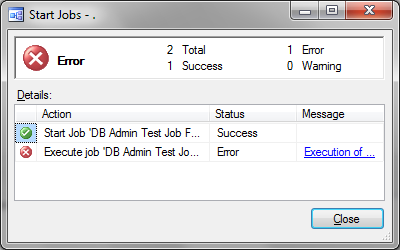
Run the job - it should fail more or less immediately.


Go and check your inbox for a failure message.  Assuming this arrives safely - well done!  Next time a job fails, it won't be deliberate - it'll be a real issue.  And you can be reasonably confident that you will know about it straight away.


Wednesday, 5 December 2012

Implementing Maintenance Plans

OK, so I've been reading stuff, a dangerous hobby I know.  Lenin read Das Kapital, and before you knew it he had overthrown the Tsar and his ministers, and declared a Bolshevik Republic in Russia.  (Speaking of Lenin, have you ever noticed that all his statues show him hailing a taxi?)


In my case I've been reading Brad McGehee's guide to maintenance plans, and I've been looking at ways to put it into practice.  Of course there is no single right way to create a maintenance plan.  Just looking at backups, you can do it in any number of ways.  Using a maintenance plan is one way, you could also use Red Gate Backup or another third party tool and set up a job for backup.  Or I know a colleague who set up a cursor to work through each database in turn, backing it up.  The important thing is that you take a backup, not how you do it.

But the virtue of maintenance plans, which came in with SQL Server 2005, is that they provide a clean straightforward way of performing routine maintenance tasks, without forcing you to do much in the way of hard work.  That's the good thing; the bad thing is that you can't script them out and install them on another server - you have to create a new plan from scratch. Fortunately it's an easy drag and drop process.  Maintenance plans use a subset of SSIS - SQL Server Integration Services - to carry out the necessary maintenance tasks.  So you start by selecting a task from a "toolbox" menu, and dragging a box onto the screen.  Each box describes a particular task: backup, update statistics, indexing, whatever - you configure it, and then go on to the next task.  I find this an elegant way of doing stuff, particularly when you want to do things in order, and you don't want to start the second task until you are sure that the first thing has worked.

Here's one I did earlier - backing up over a network.   This example shows another nice feature - see the red line?  This tells the system what to do if there is a failure - if the first backup fails, take another backup to a different backup server.


Let me show you what works for me - and I'll try to talk about what you might like to change.

First of all, I like to set up two separate maintenance plans - one for the system databases (master, model, msdb) and another for all the user databases.  The system DBs are usually relatively small, and straightforward,  Having separate maintenance plans for System and User databases allow the System DBs to be backed up in seconds; a failure in the User databases does not stop the system databases from being backed up.  If there is a failure, chances are it will be with one of the big user DBs, and by having a separate maintenance plan, I know that one important thing at least is working, and system DBs are fine.

The description is optional, but it is good practice to enter one, with initials and date.  Each plan has appropriate sub-plans - for Daily, Weekly and Hourly Tasks as required.  So for example:


DBAdmin System DB Maintenance
Planned Preventative Maintenance for System DBs - jw 13/11/2012
    • Daily Tasks
    • Weekly Tasks
DBAdmin User DB Maintenance
Planned Preventative Maintenance for User DBs - jw 13/11/2012

    • Hourly tasks
    • Daily Tasks
    • Weekly Tasks
Here's what it looks like on screen:
SQL Server 2012 (and onwards) has an extra column:- Run As e.g. run as SQL Server Agent service account.
Notice I've given each sub-plan a schedule - it's probably better not to do this immediately, but wait until you have tested each element.  At the very least, don't schedule the transaction log backups until you have taken a full backup!

I don't anticipate a need to take transaction log backups of the system databases, so the hourly Tasks sub-plan can be skipped for the System DBs,  

Did I mention that SQL Server will create a log report of all your maintenance plan activities?  A quick flashback to the menu - see the button that vaguely resembles two pieces of paper?  If you hover over it, a tooltip pops up to say Reporting and Logging. 


      Click on that Reporting and Logging button, and you get this dialog box.  There are just a couple of things to do here.  First of all, tick the box to say Log Extended Information.  This fills the log with extra data.  You will never need this extra data unless you haven't got it, in which case it will be crucial to troubleshooting your problem.  Second, copy and paste the folder location into your clipboard - you'll need it in a few minutes.  


Weekly Tasks

I've put down three tasks to be done weekly - Rebuild the Indexes, clean up the History, and clear out the log reports.  


Rebuild Index 

Once a week is probably enough, but of course that depends on your particular circumstances.  The Rebuild might be needed more frequently if you have a high volume of data edits, inserts or deletes, in which case you can do this as one of the Daily Tasks.  If you have a narrow maintenance window, you might like to consider the need for a SQL task to run custom code to rebuild, reorganise or leave indexes alone, depending on the level of fragmentation it detects.  If you want to do this with a separate job, right click on the box above and select Disable.  It's also a good idea to leave a reminder note to yourself - right click on the background next to the box and select Annotation.  This lets you write something like "Replaced by Special Indexing Job jw 01/12/2012" - so you don't come across the disabled job in three months' time and enable it.  

But if you have time to Rebuild, why not?  Here's the dialog box.  I won't go into the details because usually all you have to do is Pick the Rebuild Index task off the toolbox menu, drag it onto the screen and tell it what databases you want. If you want to know all the whys and wherefores, have a look at Brad McGehee's guide.   


I like to pick either all the system databases or all the user databases, depending.  You can do different things to different databases, by picking individual ones, but you then have the problem of  keeping on top of changes - if someone adds a new database you have to remember to go through all your maintenance plans deciding what to do with it.  Keep it standard if you can.  One box I do recommend you tick is the one to ignore databases where the state is not online - it saves a lot of hassle.  Obviously you don't want to re-index an offline database, but if you forget to tick this box, SQL server will try, and fail, and then the whole job fails.  


Clean out history 
Once a week, clear out stuff older than four weeks.  That's the default, you can change it if you can think of a good reason for doing so.  


Clean out old log reports 

 Remember the reporting and logging folder which you added to your clipboard a few minutes ago?  This is where you need it.  The Maintenance Cleanup Task is usually used for clearing out old backups, but you can also use it here for clearing out old log reports.  If you think about it, you have a couple of daily tasks and maybe a dozen hourly transaction log backup tasks.  Over a few weeks, this will mount up.  So the default is to sling those that are older than four weeks old.  You don't have to - you can keep them for ever if you want, it's no skin off my nose - but four weeks seems reasonable.


 Warning - SQL Server can be a bit flaky at deleting old files, especially things that aren't old BAK files.  In theory, this was resolved years ago when they brought out Service Pack 2 for SQL Server 2005. In practice, it may work as designed, or it may not.  If it doesn't, check out this blog post - Maintenance Plan Log Files Won't Die

Daily Tasks

I've put down four tasks to be done each day- check database integrity, update statistics, take the backup and remove old backups.


Check Database Integrity

This is going to check for corruption in your databases.  It actually runs DBCC CheckDB(database) for each of the databases you select.


Don't believe me?  Just press the View T-SQL button:


USE [ReportServer]
GO
DBCC CHECKDB(N'ReportServer')  WITH NO_INFOMSGS
GO
USE [adventureworks2012]
GO
DBCC CHECKDB(N'adventureworks2012')  WITH NO_INFOMSGS
GO


You can type out these commands yourself if you want, but why would you ever go to all that trouble?  I think this is a good illustration of maintenance plans making life simple.

Here's the other good thing.  In 99 times out of a hundred, probably even more often than that, DBCC CheckDB will find no problems.  But that one time, there's a corruption in the database, and that's potential bad news.  And if it happens, the maintenance plan stops, sends me a warning message (I'll get on to that) and doesn't back up the corrupt database or delete the old, good, backup.  Turn it the other way round - by doing the check before taking the backup, you know that you are not backing up a corrupt database.

Update Statistics


Update the statistics, and it could potentially make the queries run quicker.  If statistics are out of date, the query execution plan is relying on out of date information and could make a bad decision.  I've never seen proof of this in practice, but that might be because I like to update the statistics every day!


Back Up Database

This is the big one, the one that really matters.  If you don't back up your databases, perhaps DBA work is not the right niche for you?  Here's how:


I'll stick with my policy of backing up all the user databases, and taking a full backup of all of them every night.  But this might not always be possible.  If a database is very large, it might be best to take a full backup at the weekend, and take differential backups on all other days.  Check how long the backups are taking.

I like to create a sub-directory for every database - I find this particularly useful if I'm taking full and transaction log backups - this keeps them neatly together, and makes it easy to find the backups you need in a hurry.  Not everyone likes this - try it both ways and decide.

I like to use the file extension usr.bak for user databases, sys.bak for system databases.  This ensures that the maintenance cleanup task only clears out the correct backups.  (It probably isn't critical, unless you have very different deletion schedules for user and system backups).


Here's the code to take the backup: 


BACKUP DATABASE [adventureworks2012]
       TO  DISK = N'C:\Program Files\Microsoft SQL Server\MSSQL11.MSSQLSERVER\MSSQL\Backup\adventureworks2012\adventureworks2012_backup_2012_12_05_203624_3408922.usr.bak'
       WITH NOFORMAT,
              NOINIT, 
              NAME = N'adventureworks2012_backup_2012_12_05_203624_3408922',
              SKIP,
              REWIND,
              NOUNLOAD,
              COMPRESSION, 
              STATS = 10
GO


Then, if you tick the Verify box, it does an extra chunk of code, and runs restore with verify only - in other words, it simulates running a restore without actually doing so.  This is a good test of whether you have a good backup or not.  (The ultimate test, of course, is actually restoring your database - some would argue that this is the only test that matters).


declare @backupSetId as int
select @backupSetId = position from msdb..backupset
       where database_name=N'adventureworks2012'
       and backup_set_id=(select max(backup_set_id) from msdb..backupset where database_name=N'adventureworks2012' )

if @backupSetId is null
begin
       raiserror(N'Verify failed. Backup information for database ''adventureworks2012'' not found.', 16, 1)
       end

RESTORE VERIFYONLY FROM  DISK = N'C:\Program Files\Microsoft SQL Server\MSSQL11.MSSQLSERVER\MSSQL\Backup\adventureworks2012\adventureworks2012_backup_2012_12_05_203827_4199319.usr.bak'
       WITH  FILE = @backupSetId, 
       NOUNLOAD, 
       NOREWIND
GO

The downside of running Verify is that the maintenance plan will take longer to run.  Perhaps 10% longer, perhaps twice as long.  The default is OFF, but I would always turn it on unless I have good reason to be concerned about running time.  Try it and see.  

Finally, if you are running SQL Server 2008 onwards, you can choose to compress your database.  Third party products like the excellent Red Gate Backup offer different levels of compression; the native Microsoft product offers only on or off.  On is fine - I don't really see the value in fine-tuning the amount of compression - just do it!  One word of warning - you can set the default for compression to be "Use default server setting", which sounds well and good until you realise that you don't know what the default server setting is.  Best to explicitly say whether you want it or not, if you ask me.  


Clean up old backups

This is the Maintenance Cleanup task again - we saw this earlier in the weekly tasks when clearing out the log files.  It's the same, except that we are removing usr.bak files, and probably the retention period is something like three days.


Hourly Tasks

A quick one - Back Up the Transaction Log, and remove old backups


Backup Transaction Log

Pretty much as before - the essential difference is that the Backup Type is Transaction Log, and the file extension is trn.  


Clean up old backups

And again - same as before, remembering to clear out the trn files.  


Scheduling

It rather depends on your business - let's assume that your business works office hours (Monday to Friday, 9am to 5pm).  If it doesn't, you are going to have to think about when you can do things to be minimally disruptive.  

Weekly jobs - well, duh - once a week, perhaps on a Saturday or Sunday evening.  Let's say 1800 Sunday

Daily jobs - every evening, let's say at 2000.  This should mean that the weekly job is finished on Sunday before the daily job starts.  But you'll need to check the typical duration.  

Hourly jobs - start an hour or two before normal start time, finish an hour or two after knocking off time.  So every hour from 0600 to 1900 should cover it.  If nothing is happening overnight, there isn't much point in backing up that transaction logs.  

Whatever you decide, keep tabs on it for the first week at least to make sure that things aren't overlapping and generally screwing up.   


Problems

I'm going to make this the subject of another blog post, as this one is getting rather long-winded.